


Fullerton College Distance Education Handbook
Revised by the Distance Education Advisory Committee (DEAC) – Spring 2026
Handbook Purpose & Goals
- Articulate the mission and goals of the Distance Education program, especially as they pertain to the Fullerton College Educational Master Plan.
- Provide technical and pedagogical support and resources for faculty teaching online and hybrid courses.
- Furnish information about training and mentoring for online and hybrid course delivery methods.
- Inform faculty about the mandatory policies and procedures (Title IV, V, Ed. Code, ADA, etc.) that relate to Distance Education courses.
- Define best practices in Distance Education and how those should be incorporated into course design and delivery.
- Offer comprehensive resources for ongoing faculty development.
Preparation to Teach Online
Mission, Definitions, and Terminology
- Asynchronous Online: This class is fully online and does not require in-person meetings.
- Synchronous Online: This class is scheduled similar to an in-person class with set meeting time in Zoom, Big Blue Button, or other types of video conferencing during the scheduled class time.
- Hybrid: This class is partially online with some required in-person class meetings on campus on specific days and times. In-person dates are listed in the schedule, or this class is online with some instruction via videoconferencing, dates are listed in the schedule.
Curriculum Approval
Since Fall 2020, courses have provided justification for Distance Education (DE) through a DE Addendum (DEA), attached to the course proposal. Please make sure that the application for DE (online/hybrid or one or the other) is mentioned on the Justification for Proposal. You need to check the appropriate boxes: online, hybrid, Emergency DEA, DEA.
Please note: as of Spring 2021, we are using the DEA as demonstration of online readiness. Faculty originators do not have to complete the “Contact Types” screen, with ONE exception: Use Other, and write something like “Please see DEA attached.” (CurricUNET won’t let us leave the screen without adding something to “Contact Types.”) Courses approved for “Emergency DEA” delivery should also complete a “permanent” DEA if online or hybrid delivery is to continue once emergency conditions no longer apply. If a course was already approved for Distance Education (online and/or hybrid) before 2020, a revision proposal should have a completed DEA attached, since updates to federal guidelines require more information than was required on CurricUNET before 2020.
In order to be approved for Distance Education (online and/or hybrid), a CurricUNET course proposal need not be created. However, a DEA must be completed, and brought to the Curriculum Committee for “fast-track approval.” Once approved, it goes to DCCC and the Board of Trustees (BOT). After BOT approval, the course can be scheduled for online or hybrid. Fullerton College Curriculum Committee Handbook, Revised Fall 2022
Online Teaching Certification Process
Faculty who teach in a distance education modality at Fullerton College must be certified to teach online. This includes teaching asynchronous or synchronous, hybrid, and Zoom courses. Four options exist for faculty to receive online teaching certification, all of which have been approved by the Distance Education Advisory Committee.
Option 1 – Equivalency
You may submit materials that demonstrate completion of an Online Teaching Certificate from another college or educational organization. To begin the equivalency process, download, complete, and submit the Online Teaching Equivalency Application. Directions for submission are on the form.
Option 2 – FC Online Teaching Certificate
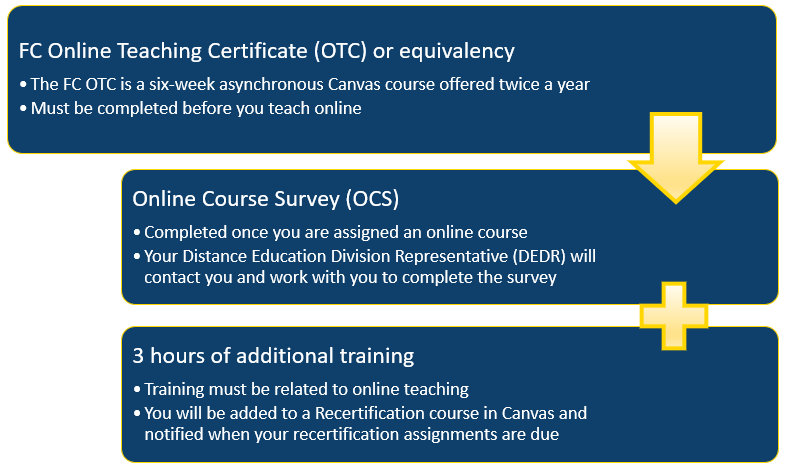
The Fullerton College Online Teaching Certificate builds faculty capacity to teach their courses in Canvas according to the principles of online pedagogy. The training includes recommendations for regular and substantive interaction and accessibility. This six-week, fully asynchronous online training is offered twice a year. For more information, email the Distance Education office at online@fullcoll.edu. The Fullerton College online teaching certification consists of the following modules:
- The Pregame and Kick-Off – specific skills that help participants set up a Canvas shell
- Accessibility 101 – the importance of accessibility; how to design accessible Canvas content, Word documents, PowerPoint slides, Google Docs, etc.; video captioning options
- The Canvas Challenge – how to make your course student-friendly, utilize various Canvas tools, and create an accessible syllabus
- Training Camp 1 – the Online Education Initiative (OEI) rubric, regular and substantive interaction, and instructor-to-student interaction
- Training Camp 2 – content presentation, objective alignment, and instructional video creation
- Training Camp 3 – student-to-student interaction, advanced Canvas functions, and the use of accessibility tools in Canvas
- Canvas Post Challenge – assessment, campus support for online learners, home pages, announcements, Office 365, designing for equity, and more!
Option 3 – @ONE Courses
Enroll in the facilitated versions of the two approved courses: 10-10-10 Communication That Matters and Creating Accessible Course Content. The self-paced versions of these courses do not count toward certification. These courses are currently free for CCC faculty. Certificates of completion must be submitted to the Distance Education Office. Browse the @ONE Course Catalog for current course offerings.
Option 4 – ACTE (CTE Faculty Only)
Offerings certified by the Association for Career & Technical Education (ACTE) were researched to select courses that cover all requirements for the Fullerton College Online Teaching Certificate Equivalency. Required courses: EL 103R – Teaching Online: A Student-Centered Approach; EL 111 – Assistive Technologies for the Online Learner; EL 113 – Active Learning in an Online Environment; EL 201R – Online Communication: Engaging & Retaining Online Learners. Certificates of completion must be submitted to the Distance Education Office.
Online Teaching Recertification Process
One: 3 Hours of Professional Development Related to Online Teaching
Faculty members are responsible for tracking their individual professional development, so ensure you have a system in place for doing this. Faculty will be notified when it is time to recertify and will be added to the OTC Recertification Canvas shell to complete recertification.
Professional development options may include:
- Fullerton College-sponsored professional development
- @ONE course(s)
- Third-party professional development that may be approved on a case-by-case basis by the DE Director and/or DEDR
Two: Online Course Survey (OCS)
In November of 2018, the Fullerton College Faculty Senate approved the Online Course Survey to create a structured process to monitor course quality and to confirm that the level of faculty-to-student and student-to-student interaction in online courses meets state and federal requirements. This Online Course Survey is designed as a tool to assist faculty in achieving quality online pedagogy in their courses. There are two brief surveys (Interaction and Accessibility), each with a set of questions/elements that faculty use to survey their online courses.
The OCS Process
- Instructors will complete the course survey once they are assigned an online course.
- The Distance Education Division Representative (DEDR) will review completed surveys.
- For instructors whose courses are in alignment, the DEDR will recommend to the Distance Education Director (DED) that the instructor’s certification for online teaching be renewed for three years.
- If a course is not in alignment, the DEDR and the instructor will work together to make needed changes. If alignment is achieved, the DEDR will recommend to the DED that the instructor’s certification for online teaching be renewed for three years.
- If the DEDR and instructor are unable to bring a course into alignment, the instructor will have one year to make changes and do the survey again the following Spring.
- The DEDR will review the course again in the Spring and make recommendations to the DED.
- If the course is still not in alignment, the DEDR will recommend to the DED that the instructor’s certification for online teaching be suspended.
The CVC-OEI Course Design Rubric
Fullerton College uses the CVC-OEI Course Design Rubric for guidance on online course design and development. The CVC-OEI Course Design Rubric contains the online course design standards developed and adopted by the CVC-OEI. The Rubric is intended to establish standards relating to course design, interaction and collaboration, assessment, learner support, and accessibility in order to ensure the provision of a high-quality learning environment that promotes student success and conforms to existing regulations.
The CVC-OEI Rubric is in the process of being updated, so this section of the handbook will likely change in Summer 2026.
Section A: Course Design
Course design focuses on the principles of instructional design to create an organized, student-centered learning experience. Faculty must structure courses to include clear learning objectives, logical organization of content, and instructional strategies that promote engagement and success.
Below are the criteria for Section A which include 13 elements for quality course design. Key elements include course navigation, learning objectives, and access to student support information.
| Section | Aligned | Exemplary |
|---|---|---|
| A1: Placement of Unit-Level Objectives | Objectives are included in the individual learning units | Objectives are included in assessments |
| A2: Clarity of Unit-Level Objectives | Objectives include demonstrable learning outcomes | Objectives are written in language that is student-centered |
| A3: Align of Unit-Level Objectives | Unit content and activities are aligned with unit objectives | The connection between the content, activities, and objectives is explicit |
| A4: Course Navigation | Navigation and content flow are easily determined | Clearly labeled tutorial materials that explain navigation that are specific to the course are included |
| A5: Unit-Level Chunking | Content is presented in visibly distinct learning units or modules | Modules are consistently structured and sequenced |
| A6: Page-Level Chunking | The page content is chunked into manageable segments using headings that facilitate reading | Page content uses descriptive headings and subheadings that enhance student understanding |
| A7: Effective Use of CMS Tools | CMS tools are used to reduce the labor intensity of learning in a way that streamlines access to materials | CMS tools are used to provide integrated and innovative learning materials and activities |
| A8: Student-Centered Teaching | A variety of modalities are used to create student-centered learning | Technology is used creatively to emphasize student-centered learning throughout the course |
| A9: Instructions | Course design includes instructions for learners to work with content in meaningful ways | Instructions are directly embedded with the content or activity |
| A10: Individualized Learning | Individualized learning opportunities, such as remedial activities or resources for advanced learning, are provided | Numerous individualized learning opportunities are provided throughout the course |
| A11: Learner Feedback | Learners have the opportunity to give anonymous feedback to the instructor regarding course design | There are opportunities to give anonymous feedback both during delivery and after course completion |
| A12: Institutional Policies | Institutional policies relevant to learner success (plagiarism, academic honesty, technical support, DSS) are included and easy to find | Institutional policies are provided in units or activities where they are most relevant |
| A13: Student Services | Links to institutional services, including the DSS office and the library, are embedded in the course and clearly labeled | Links to institutional services are provided in units or activities when they may be needed the most |
FC Course Design Resources
Section B: Interaction
Regular and substantive interaction is a California requirement for distance learning. Instructors must initiate meaningful contact with students on a regular and timely basis to ensure instructional quality and verify participation and performance standards. At Fullerton College, we also emphasize student-to-student interaction to foster engagement and community.
Below are the criteria for Section B. The eight elements in this section address instructor-initiated and student-initiated communication.
| Section | Aligned | Exemplary |
|---|---|---|
| B1: Pre-Course Contact | Instructors initiate contact before or at the start of the course | The instructor provides multiple resources to help students successfully start the course |
| B2: Instructor-Initiated Contact | The instructor provides a communication plan | The instructor’s communication plan includes a wide array of communication tools |
| B3: Technology Support | The instructor explains their role in technology support | Links are provided to technology support where they may be needed within the course |
| B4: Instructor Contact Info | Contact information for the instructor is easy to find | Students can choose from a variety of tools to contact the instructor |
| B5: Student-Initiated Contact | Opportunities for student-initiated contact are available | Student-initiated interaction contributes to the learning in the course |
| B6: Student-to-Student Interaction | Student-to-student interaction that contributes to the course is required | Student-to-student collaboration is designed to build authentic skills |
| B7: Learning Community | The course includes communication activities that are designed to build community | The communication activities are designed and facilitated to support diverse cultures and communication styles |
| B8: Participation Levels | Guidelines explaining required levels of student participation are provided | A rubric or equivalent grading criteria explaining participation levels is included |
FC Interaction Resources
Section C: Assessment
Online assessments should measure progress towards learning outcomes, and provide feedback to students and instructor. Instructors should use assessments as an ongoing means of measuring and assessing student learning. Within our online courses, the interplay of informal assessments, such as discussions, quizzes, and activities, creates an opportunity to provide feedback to our students and support growth and learning.
Below are the criteria for Section C and some ways you can think about potentially revising and refreshing the assessments in your course:
| Section | Aligned | Exemplary |
|---|---|---|
| C1: Authenticity | Assessments allow for the demonstration of learning outcomes | Assessments are designed to mimic or transfer to authentic environments |
| C2: Validity | Assessments are aligned with objectives | Learners are directed to the appropriate objective for each assessment |
| C3: Variety | Both formative and summative assessments are used | Multiple types of formative and summative assessment are used |
| C4: Frequency | Assessments are administered throughout the course | Assessments are both frequent and provide timely feedback |
| C5: Rubrics | Rubrics or descriptive criteria are included | Rubrics or descriptive criteria include models of good work |
| C6: Instructions | Assessment instructions are clear | Assessment instructions are clear and include exemplary detail |
| C7: Feedback | The course includes a plan for providing meaningful, timely feedback | Instructions are given to students on how to access feedback, and guidance is provided for applying that feedback |
| C8: Self-Assessment | Opportunities for self-assessment with feedback are present | Multiple opportunities for self-assessment with feedback are present |
FC Assessment Resources
Section D: Accessibility
All course materials meet legal and institutional accessibility standards (including, but not limited to, Section 508 of the Rehabilitation Act of 1973 and W3C Web Content Accessibility Guidelines 2.1 AA). Faculty must design Canvas content, Word documents, PowerPoints, lecture videos, and all other instructional content so they are perceivable, operable, understandable, and robust for all students.
Below are the criteria for Section D of the rubric. Use the FC Distance Education Accessibility Guide to assist you.
| Section | Aligned | Incomplete |
|---|---|---|
| D1: Headings | Heading styles are consistently used | Heading styles are not consistently used or are not used |
| D2: Lists | Lists are created with the list (bullet or numbered) tool in Canvas | Numbers, letters, or symbols have been manually inserted to create lists |
| D3: Links | Links are unique and descriptive | Links are a URL or are not unique or descriptive |
| D4: Tables | When appropriate, cells have been designated as row or column headers | Tables do not use designated header cells. |
| D5: Color Contrast | There is sufficient contrast between the background and foreground colors | There is an insufficient color between the background and foreground colors |
| D6: Color and Meaning | Visual elements are not used as the sole method of conveying importance or information | Visual elements have been used as the sole way to convey meaning |
| D7: Images | Every image in the course has alternative descriptive text, including any text within the image, and does not contain phrases such as “image of” or file extensions such as .jpg | Alternative text is missing, improperly formatted, or not descriptive |
| D8: Reading | Reading order is correctly set so that content is presented in the proper sequence when using screen readers and other assistive technologies. | The reading order is not correctly set, and pages will not be read properly with screen readers |
| D9: Slides | Slides are created using built-in accessible slide layouts, each with a unique title. All text is visible in Outline View to ensure it can be read by assistive technology. | Slides do not use layouts, and all text is not visible in Outline View |
| D10: Spreadsheets | Spreadsheets include labels for the rows and columns and detailed labels for charts and are accompanied by textual descriptions that draw attention to key cells, trends, and totals | Spreadsheets do not use labels or textual descriptions |
| D11: Accessibility Checkers | Files and content pages pass any built-in accessibility check available in the software | Files and content pages do not pass any built-in accessibility check available in the software |
| D12: Video | All videos have accurate captions. Videos with no audio or instructionally relevant soundtrack are noted as not including audio. | Videos are not captioned. Videos without are not marked as no sound. |
| D13: Audio | Complete and accurate transcripts accompany audio files. | Audio files do not contain complete and accurate transcripts. |
| D14: Flashing Content | Blinking or flashing content, including gifs, should only be used if instructionally needed and not merely for decoration or emphasis. Flashing content must flash at most three times in any second or exceed the general and red flash thresholds. | Unnecessary blinking or flashing content is included. Blinking or flashing content does not meet the time and red flash requirements. |
| D15: Live Captions | Live broadcasts and synchronous video conferences include a means for displaying synchronized captions if requested. | Live content does not include a means for displaying captions. |
| D16: Auto-Play | Audio and video content are not set to auto-play. Any audio on a web page using auto-play for over three seconds includes a mechanism to pause, stop, and control the volume. | Auto-play is used on pages, or auto-play without controls on linked websites. |
The LMS and Best Practices
Canvas Shells
Course Shells: Official course shells are created for you and are tied directly to the district’s registration system. Course shells for future semesters are generally available once the searchable class schedule for that semester is live.
Practice/Sandbox Shells: At Fullerton College, faculty can create practice shells in Canvas. Use the Start a New Course button on your Canvas Dashboard to create a practice shell.
Course Start and End Dates
Canvas courses are organized by term. Each term is set to begin a week before the semester starts and ends a week after grades are due. These dates can be changed by the instructor in the course Settings menu. However, be aware that if you change the start date, you must also enter an end date. If the end date field is left blank, your course will be available and on your students’ Dashboards indefinitely.
Importing Course Content
Import previous semester’s courses into new Canvas course shells using the Course Import Tool:
- In your new Canvas shell, use the Import Existing Content button on the home page
- Select Copy a Canvas Course in the Select Content Type dropdown
- Search for your old Canvas course in the Search for a course field
- To copy the entire course, select the All content radio button
- Select the Adjust events and due dates checkbox and select one of the options (Shift dates or Remove dates). If you do not select one of these options and the due dates are past dates from your old course, you may run into issues in your gradebook.
- Use the gold Add to Import Queue button once you are ready to import your content
Course Navigation
Course navigation is the menu on the left side of your screen. You and your students use the course navigation menu to move between the various tools inside the course. By default, the course navigation displays many links, which can cause student confusion as they attempt to navigate the course.
Adjust your course navigation, so students only have access to the areas of the course they will use during the semester:
- Select Settings in the course navigation menu
- Select the Navigation tab
- Drag and drop items, or use the kebab menu to the right of each item to enable/disable links
- Scroll back down and use the Save button to save your changes
Course Modules
All Fullerton College Canvas courses should be organized using Modules.
Modules are used to control the flow of your course content by breaking the course up into weeks, units, or any other organizational pattern that works for your course. With modules, you are creating a linear flow of what you would like your students to do. Once you create modules, you can add content (Pages, Assignments, Discussions, Quizzes, etc.) and module requirements to ensure students move through the content in the way you intended.
Canvas Instructor Guides:
Communication in Canvas
There are many ways to foster interaction and stay connected with your students in Canvas.
- Announcements: allow you to communicate with your students about course activities, post course-related topics, and inform students about campus events
- Discussion Boards: excellent for building community, instructor-to-student interaction, and student-to-student interaction
- Inbox: an email system specifically for Canvas
- Pronto: an easy-to-use communication/messaging platform that Fullerton College has integrated into Canvas
Grades in Canvas
The Canvas Gradebook is powerful tool with many capabilities and settings for instructors to use. Some of the most popular tips and tools are listed below. There are also links to the Canvas Instructor Guides throughout, so you can explore settings further and become more familiar with using the Canvas Guides whenever you have a “How do I do this in Canvas?” type of question.
Gradebook Settings
Grade Posting Policy Options: The default setting is automatic posting, so all grades are posted and visible to students as they are entered. You can change to manual posting policies for the course or for individual assignments.
- Change to a manual grade posting policy for the course
- Set manual grade posting for individual assignments
Gradebook Tips
- Add a Notes column to keep track of important student information that you may need to remember throughout the semester (DSS testing accommodations, preferred names, etc.)
- Set a default grade for an assignment as needed
- Use the Message Students Who feature to contact students about individual assignments
Fixing Zeroes in the Gradebook
You may encounter an issue in your Canvas Gradebook with courses imported from a previous semester. The issue occurs when you have published Assignments, Discussions, or Quizzes with due dates/available until dates that have already passed, and the gradebook set to automatically apply a grade for missing submissions. The FC Distance Education team created a guide to show you how to prevent this issue from happening and how to fix it if it has already occurred in one of your courses.
Submitting Grades in Canvas
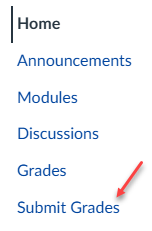
Faculty can submit grades in Canvas using the Submit Grades link in the course navigation menu.
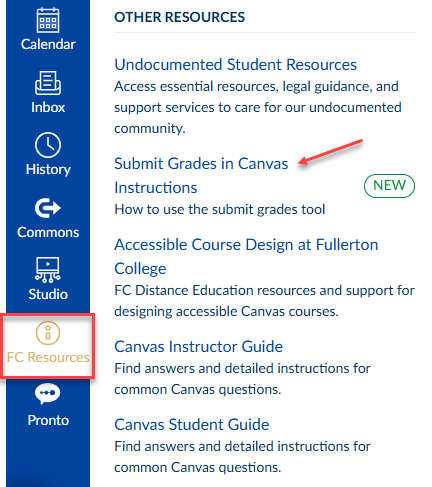
The step-by-step instructions for this tool are located under FC Resources in the blue global navigation menu in Canvas.
Pre-Semester Course Checklist
The Distance Education team has developed a Pre-Semester Course Checklist to assist faculty in preparing their courses for the new semester. In each section of the checklist, the relevant Canvas Guides are linked with step-by-step instructions and videos for each task.
If you need additional support, please email the Distance Education team at online@fullcoll.edu.