


Backing Up Your Canvas Gradebook and Content
It is important to back up your Canvas Gradebooks and course content periodically throughout the semester. This guide shows you how to export your Canvas Gradebook and how to download your course content.
Back Up Your Gradebook
Follow these steps to download your Gradebook.
- Select Grades in your course navigation.
- Select Export in the upper right corner of the screen.
- Select Export Entire Gradebook.
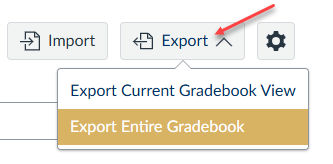
- Your Gradebook will download as a .csv file.
- To ensure the Gradebook information remains secure, store it on your Fullerton College OneDrive or a Fullerton College password-protected computer.
Download Your Course Content
You can download your course content as an ePub file, so you have a copy of all of your assignments, discussions, etc.
- Select your Account in the blue course navigation.
- Select Settings.
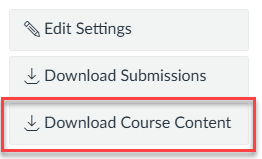
- Select Download Course Content from the options on the right side of the screen.
- Locate the course you would like to download and select Generate ePub.
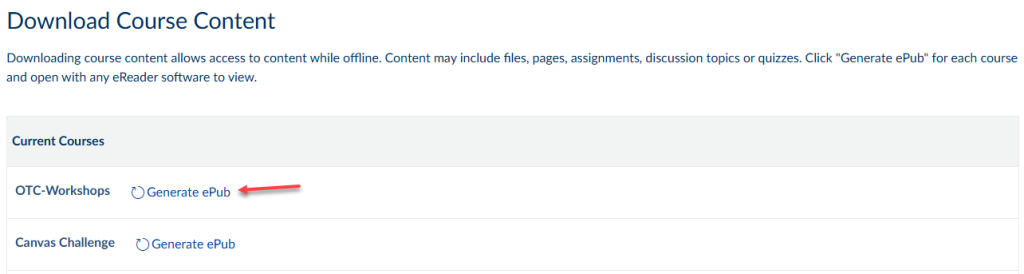
- When the ePub file has been generated, download both the ePub and the Associated Files.

Important Notes about the ePub download:
- ePub files are meant to be used with e-readers, so this file will not be particularly useful if you need it to provide assignments to your students in an emergency. If you need to copy or edit any of the content in the ePub download, you must convert it to PDF or another format. You can download Calibre or use an online ePub converter.
- Videos are not included in the download.
- The download only includes published modules, so ensure your modules are all published (published and locked if they are not ready for students to view) before downloading your ePub.