Reducing File Downloads in Your Canvas Courses
With recent security events in Canvas, students are increasingly cautious about downloading files. This guide provides some options for reducing file downloads in your courses.
File Preview Options
It is important to allow your students to preview files before downloading. The preview may be sufficient for their needs, and then they can avoid downloading the file entirely. This practice helps alleviate security concerns and acknowledges that students may not always have storage space on their devices.
When you insert a file in a Canvas Page, Assignment, Discussion, etc., ensure that you select one of the preview options.
- Insert the file in the Canvas Rich Content Editor.
- Once the file is linked, click anywhere in the link text and select Link Options.
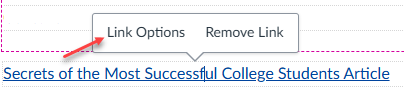
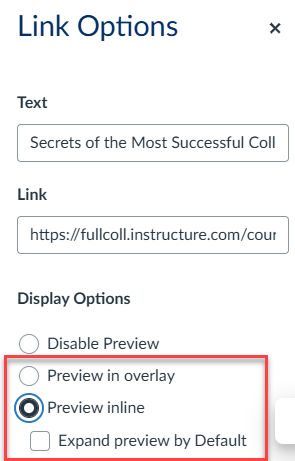
- The Link Options panel will open on the right side of the screen.
- Select one of the preview options.
Convert Your Files to Canvas Pages with UDOIT
We default to uploading files because that is the only format we have available for a particular piece of course content. However, it may benefit your students to convert existing files into Canvas Pages. The UDOIT tool makes that process simple using the steps below:
- Select UDOIT Cloud in your course navigation menu.
- If the scan does not begin automatically, use the blue Scan Now button on the upper right corner of the screen.
- Once the scan is complete, select the Review Course Files tab

- Choose the file you would like to convert by clicking the name of the file or the Review File button.

- Under Alternate Formats, request a Canvas Page.

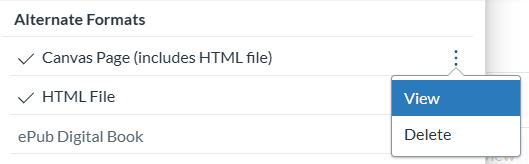
- It will take a few moments to process the request. Once the conversion is complete, you will see checkmarks next to both the Canvas Page and HTML File under Alternate Formats.
- Use the kebab menu > View to open the newly created page in a new tab. Make edits as needed.
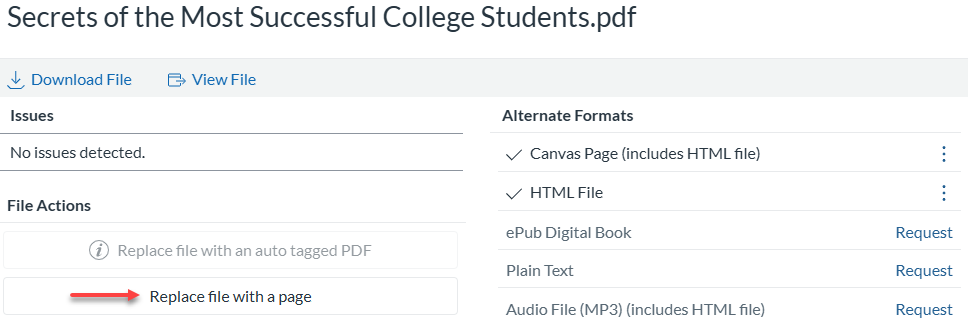
- Use the “Replace file with a page option” to replace any existing links to that file with the link to the new Canvas Page.