Distance Ed Department & Canvas Updates – Spring 2026
Welcome to the Fullerton College Distance Education News! We have a few updates for the Spring 2026 semester, so take a moment to review the entire page.
Online Learning Center Updates
The FC Online Learning Center in Room 518 is open for the Spring 2026 semester!
Distance Ed staff will be available in person to answer Canvas and online learning-related questions on Mondays from 12:00 p.m. to 3:00 p.m., and Tuesdays from 10:00 a.m. to 1:00 p.m. Virtual and appointment-based services are available outside of those hours.
Introducing TidyUP: Course Cleanup Tool for Canvas
TidyUP is a new Canvas tool that faculty can use to easily declutter their Canvas course content and files. Watch this short video and review the TidyUP User Guide to get started.
DesignPLUS Sidebar Content Updates
Template Pages
The FC Distance Education team has created a range of Template Content pages that faculty can add to their courses. Some of the newest additions to this Template Gallery include a Student Resources page that auto-updates each time it is edited, an Undocumented Students Support guide, a collection of 14 English course page templates, and a campus resource guide for the Health Center.
To add a template:
- Create a new Canvas page
- Edit the page and launch the DesignPLUS Sidebar using the blue rocket ship icon on the top right corner of your screen
- Place your cursor at the top of the page and select the Add New Elements tab in the Sidebar
- Select the Template Content tool
- Open the expanders to review the available templates
- Select the template page you would like to use
- Edit the template page as needed in the Rich Content Editor
- Save your page
Content Blocks
The Distance Education team has also created Content Blocks that faculty can use in their Canvas content. Some of the newest Content Blocks include an Activities, Assignments, and Objectives tabs set, a variety of stylized layouts, a Matching Columns interactive activity, a Fill-in-the-Blank interactive activity, an end-of-module reflection quick check, and many more!
To add a Content Block to your Canvas content:
- Edit your Page, Assignment, Discussion, etc., and launch the DesignPLUS Sidebar using the blue rocket ship icon on the top right corner of your screen
- Place your cursor where you would like the new Content Block to display in the Rich Content Editor and select the Add New Elements tab in the DesignPLUS Sidebar
- Select the Content Block tool
- Open the expanders to review the available Content Blocks
- Select the block you would like to use to add it to the Rich Content Editor
- Edit the Content Block as needed in the Rich Content Editor
- Save
Student Interactive Tools
The Cidi Labs DesignPLUS team has added a set of six different interactive tools faculty can use to create accessible, ungraded, informal self-assessments for students:
Join FC’s self-paced Introduction to the DesignPLUS Sidebar course to stay updated on all things DesignPLUS Sidebar related!
Video Tool Updates
YouTube Migration Tool Reminder
Starting September 22, 2025, YouTube videos embedded in Canvas may display ads.
There will be a message overlay on YouTube videos to alert students that the video may include ads. This message will display before playing the video on the browser. On the Canvas mobile apps, the message will be displayed at the top of the page.
To enable a distraction-free and uninterrupted learning experience, you can migrate embedded YouTube videos to Canvas Studio.
Once the videos are migrated to Studio:
- No ads will appear before or during playback
- All overlays during playback and upon pause will be removed. This includes recommendations, channel information, watch later button, etc.
- You can access Studio-only capabilities
- Captions should be carried over, but always double-check
Please review the Canvas Guide to Migrating YouTube Videos for step-by-step instructions on how to migrate your videos to Studio manually or with the new YouTube Migration Tool in your course navigation menu. (Please note that the Migration tool does not work for New Quizzes. If you have any embedded YouTube videos in New Quizzes, you will need to migrate them to Studio manually.)
PlayPosit to WeVideo
This winter, our PlayPosit service moved to WeVideo. This move provides a more robust platform for creating and delivering interactive video learning experiences. It also allows for continued innovation and improvement in the future. This move also gives you access to WeVideo’s Multimedia tool to create instructional videos, podcasts, and assignments for students to demonstrate their learning through media.
What this means for you:
- All existing PlayPosit content will be automatically and securely transferred to WeVideo. You will not lose any of your work!
- You will continue to access your interactive videos seamlessly through Canvas, just as you do now. The connection between our Canvas LMS and WeVideo will be upgraded for improved security and performance.
- You may notice a refreshed interface. This will not affect core functionality.
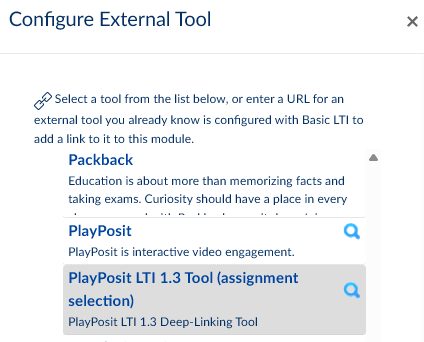
- The previous version of PlayPosit is available until the end of the semester. The previous version is in external tools as PlayPosit. The upgraded version is the PlayPosit LTI 1.3 Tool.
Recertification & Online Course Survey Reminders
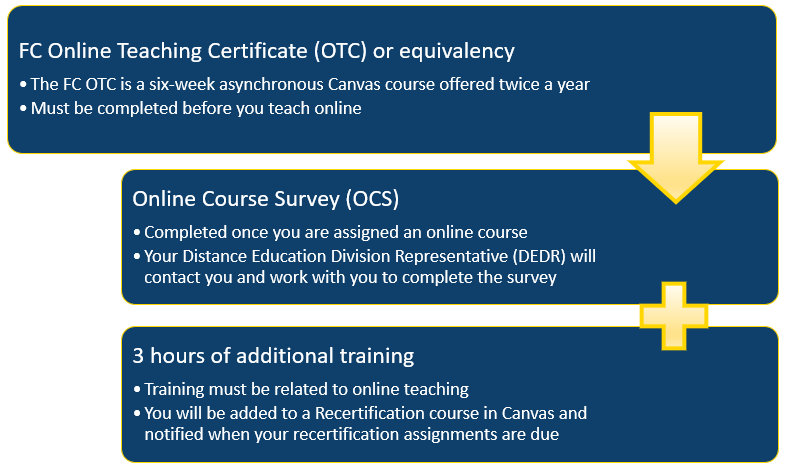
After obtaining initial online teaching certification, faculty must do the following every three years to remain certified:
- Online Course Survey
- Three hours of professional development focused on online teaching every three years. (Faculty are responsible for tracking their individual professional development, so ensure you have a system for doing this!)
- Professional development options may include:
- Fullerton College-sponsored professional development
- CVC@ONE courses and webinars
- Third-party professional development that may be approved on a case-by-case basis by the DE Director and DEDR
Faculty will be notified when it is time to recertify and will be added to the OTC Recertification Canvas shell in order to complete recertification.